Workspaces
A workspace is a client's whole context — folders, hosts, cloud links, snippets and saved layouts — apart from everything else. Every computer starts with Personal.
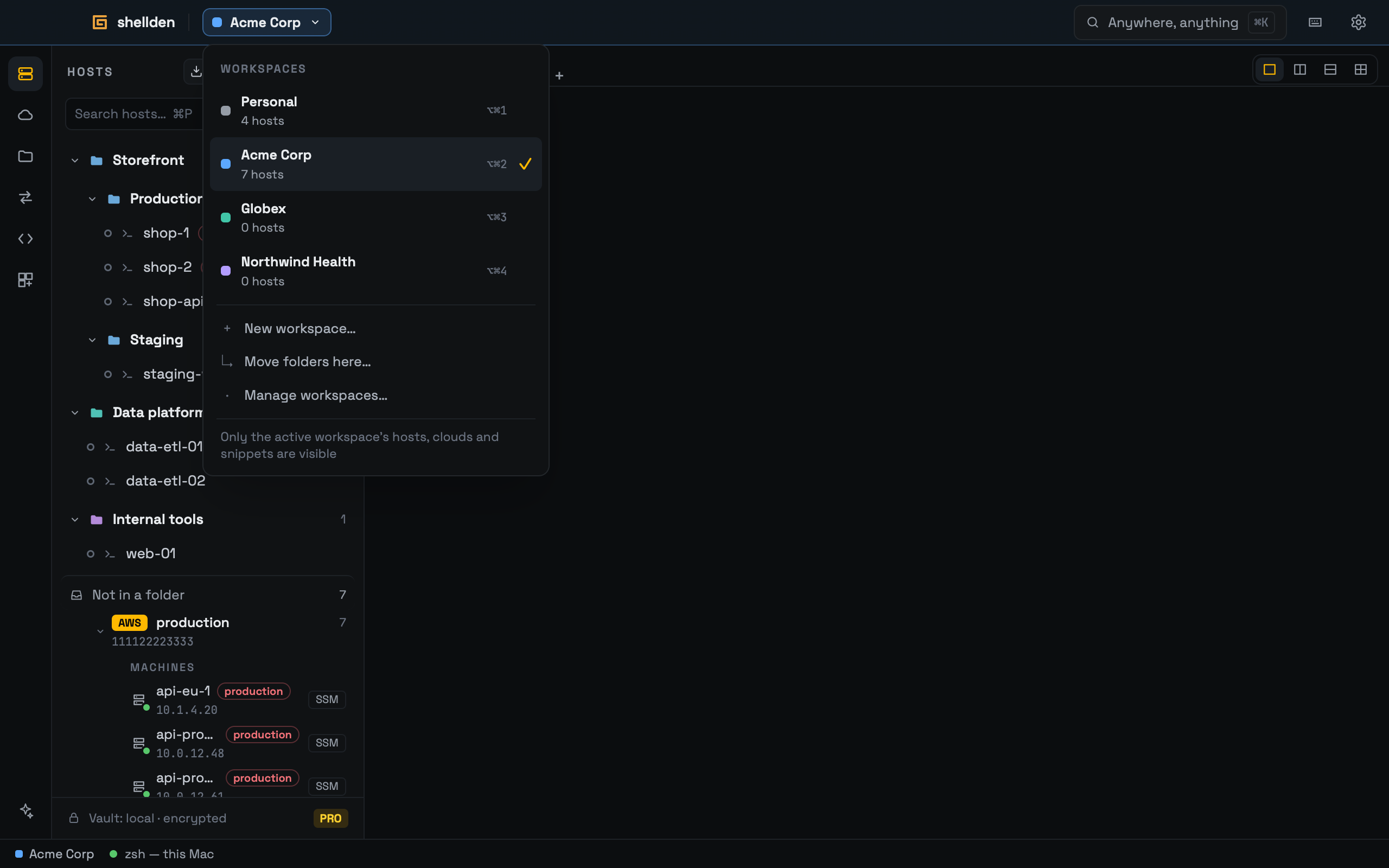
Switching
A new workspace
New workspace… (the menu, Settings → Workspaces, or a folder's right click → Move to workspace) asks for Name and Colour, then what it Carries its own:
workspace:<id> in permissions.json.Move folders into it brings the ticked folders along. Free has one workspace. Creating more is Pro (Pro: more workspaces), and going back to Free keeps them usable.
Moving and managing
Saved layouts
⌘K → Save this tab as a layout (Also in adds it to a folder's right click) keeps a tab of panes with each pane's host, folder and startup command (editable). It reopens from ⌘K (LAYOUTS) or a folder's right click → Layouts.
Typing into all panes
Type into all panes, beside the layout buttons, sends the keys to every pane. Panes get an amber ring. With a production pane among them, Return waits for its name (Send to N panes). × drops the line.
Reopening the last session
Settings → General → Reopen the last session brings every workspace back at launch. Tabs and splits and Working folders choose what returns, and Workspace at launch picks the first one. With Production hosts wait for a click a production pane shows Connect first. With it off, ⌘K → Reopen the last session does it once. Commands are never kept.
Sync, export and import
On Pro, workspaces sync. The active one and AI keys stay per computer. An export of Everything carries the active workspace with its name.