Working · 2 of 6
Docker and Kubernetes
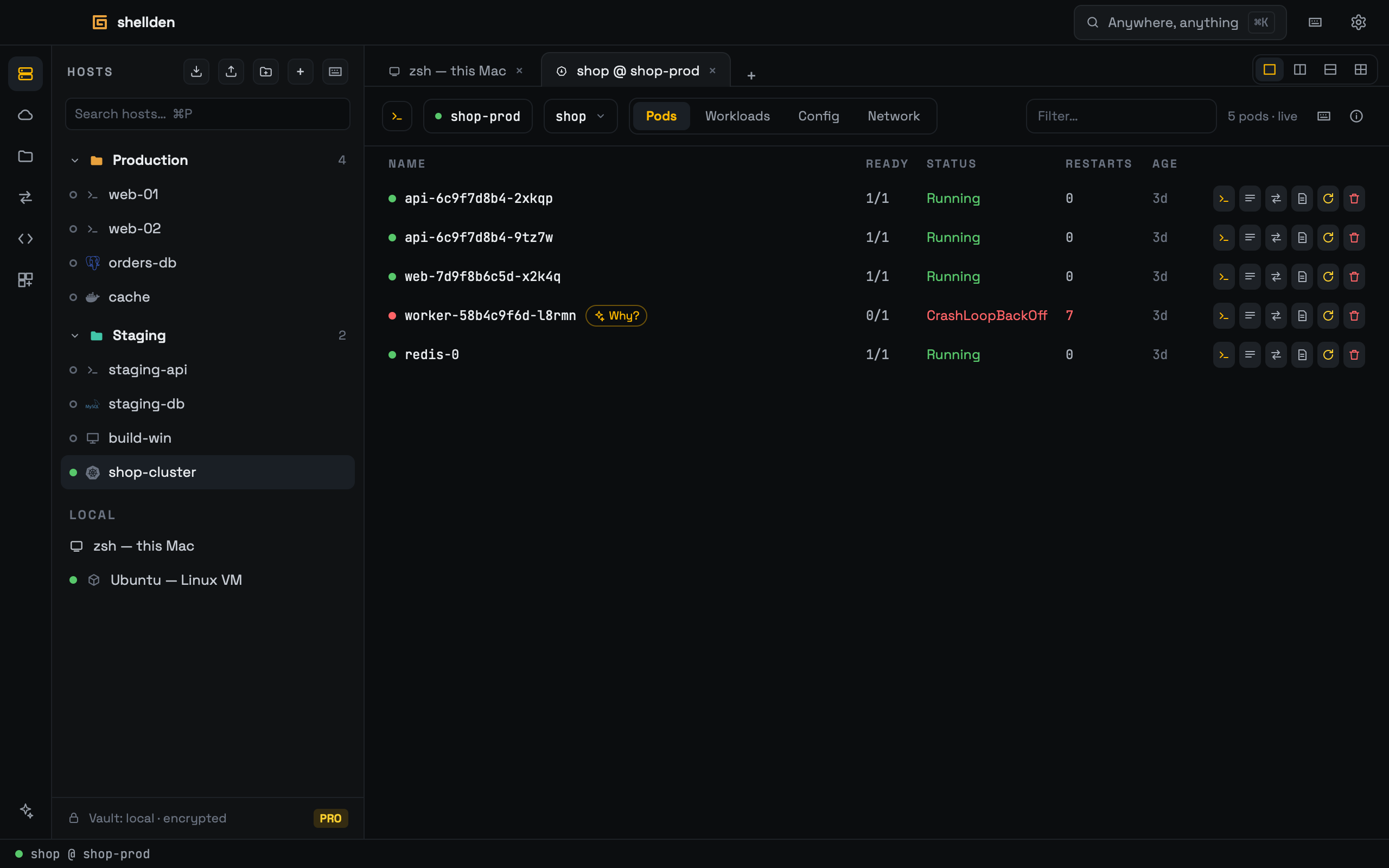
A container opens a shell in a tab; a whole cluster gets its own live view, with its pods' shells, logs and kubectl in the same view.
Docker
+ → Docker: "This Mac" or "Remote via SSH" (a saved SSH host), then a running container and the command (for example sh). Connecting opens docker exec in a tab.
Kubernetes
+ → Kubernetes: context and namespace from
~/.kube/config, and an optional API proxy port: while the session lasts, other tools on this Mac reach the cluster's API at http://127.0.0.1:<port>, as with kubectl proxy (exec and attach are not proxied).Connecting opens the Cluster tab: Pods, Workloads, Config and Network, a namespace switcher, a filter, and the session panel button.
Per pod: shell, logs, forward, describe, restart and delete (both confirm with a second click). Shell and logs open in the session panel, below. Failing pods show Why?: the assistant reads the pod's describe output and explains it.
Workloads: Logs of every replica follows every pod of a Deployment, StatefulSet, DaemonSet or Job as one stream in the session panel — each line starts with its pod's name in a color of its own (and the container's, when a pod has several). Pods a rollout adds join with +, pods that go away are marked with ×. Which replica got a request shows at a glance; to see pods side by side instead, a tab holds up to four panes.
Workloads also have rollout restart. Config: ConfigMaps and Secrets — holding the eye reveals a value, and it can be copied. Network: services and ingress routes, with forwarding to a service.
Forwards survive pod replacement: they follow the pod's labels.
Pin to hosts, in the panel next to a pod shell, saves it as a host (named after its workload) that reconnects to whichever pod matches after a deploy.
The session panel
Everything a cluster needs stays in its one tab, the way k9s works: a panel under the tables holds this cluster's sessions — the kubectl console, pod shells and pod logs — one chip each. Opening a pod's shell or logs again focuses the session already open; the pod's row shows which ones are.
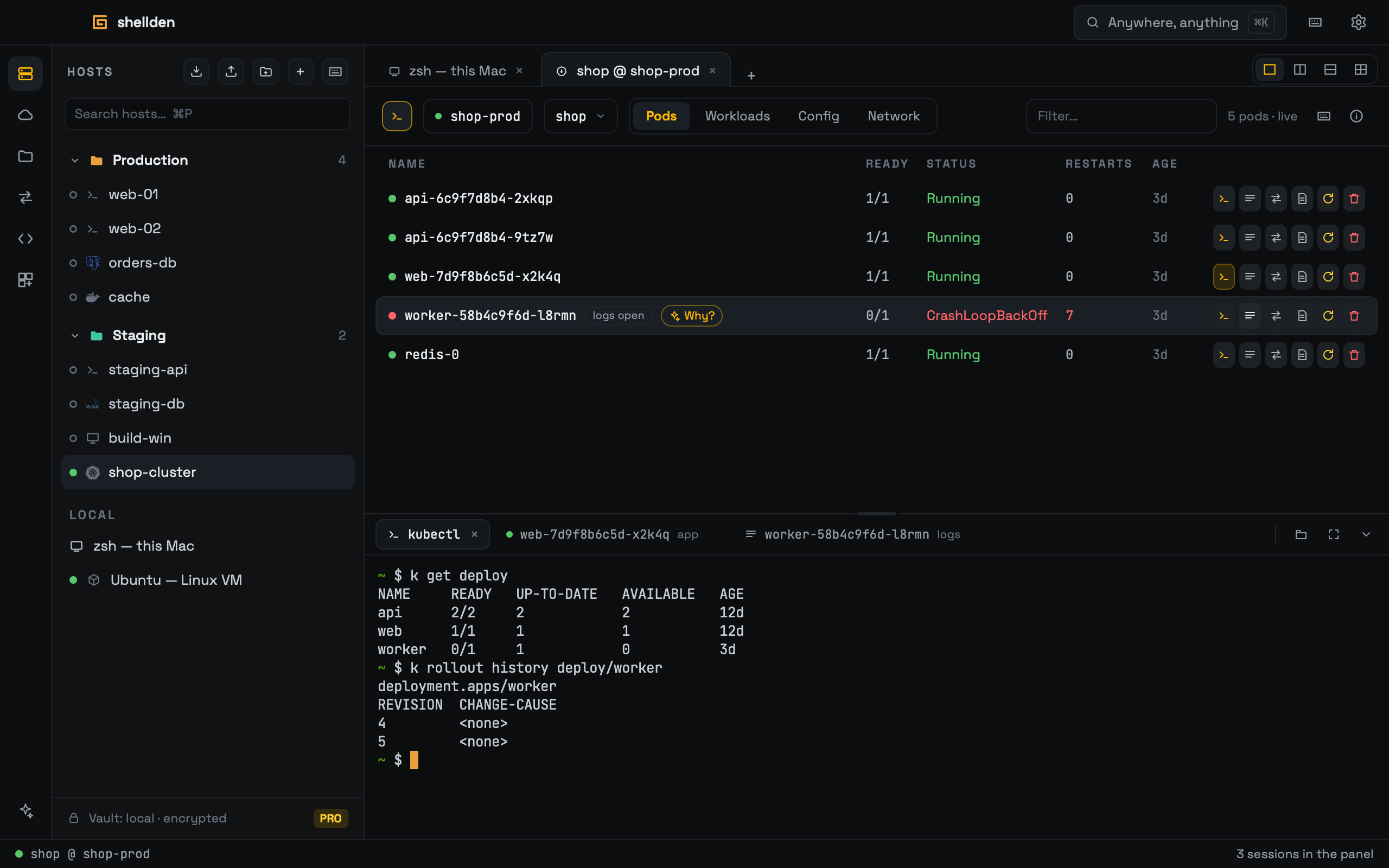
kubectl console: the terminal button at the left of the view (or p) opens a shell where
kubectl (and k) already points at this cluster and the namespace the view shows — switching the namespace switches kubectl's default too. Nothing needs to be installed: the first time, Shellden fetches the official kubectl (about 60 MB, checked against its published checksum), with progress in the panel. Saved clusters and clusters opened from the Cloud tree get it, EKS included.Keys, while the view has focus (a click on the table): ↑↓ select a pod, s opens its shell, l its logs, d describes it, p shows or hides the panel, m maximizes it, x closes its active session (⌘W too, from inside the panel), and Escape closes a sheet. From anywhere, terminals included, ⌘J shows or hides the panel (the keyboard sheet changes it). The keyboard button at the top right lists them all; the i button explains the view.
Pod shells find their shell: bash, then sh, then BusyBox's. An image with none (distroless) says so and offers Open a debug container: a BusyBox container joins the pod sharing the container's processes — its files are under
/proc/1/root — as kubectl debug does. It stays in the pod until the pod is replaced, so it is only ever added on request; the cluster has to allow ephemeral containers and be able to pull busybox.A pod with more than one container shows a container picker next to its shell.
The top edge drags to resize. Maximize gives the panel the whole view; hide keeps every session running (the panel button brings it back); × on a chip ends that session.
Open in a tab moves the session to a window tab of its own, still running — nothing reconnects.
kubectl matches the cluster: a cluster more than one version away from the kubectl Shellden ships gets the kubectl of its own version, so old and new clusters keep working. Downloading it needs an internet connection; offline, the panel says which versions are involved and tries again on its own once there is a connection (a kubectl of that version downloaded before is used offline too).
The cluster credential never leaves Shellden: kubectl talks to a private local endpoint the session opens, with a key only that console knows.