Windows and Linux desktops open in a tab, sharp on Retina, with the clipboard, a shared folder, sound, the microphone and the camera working both ways.
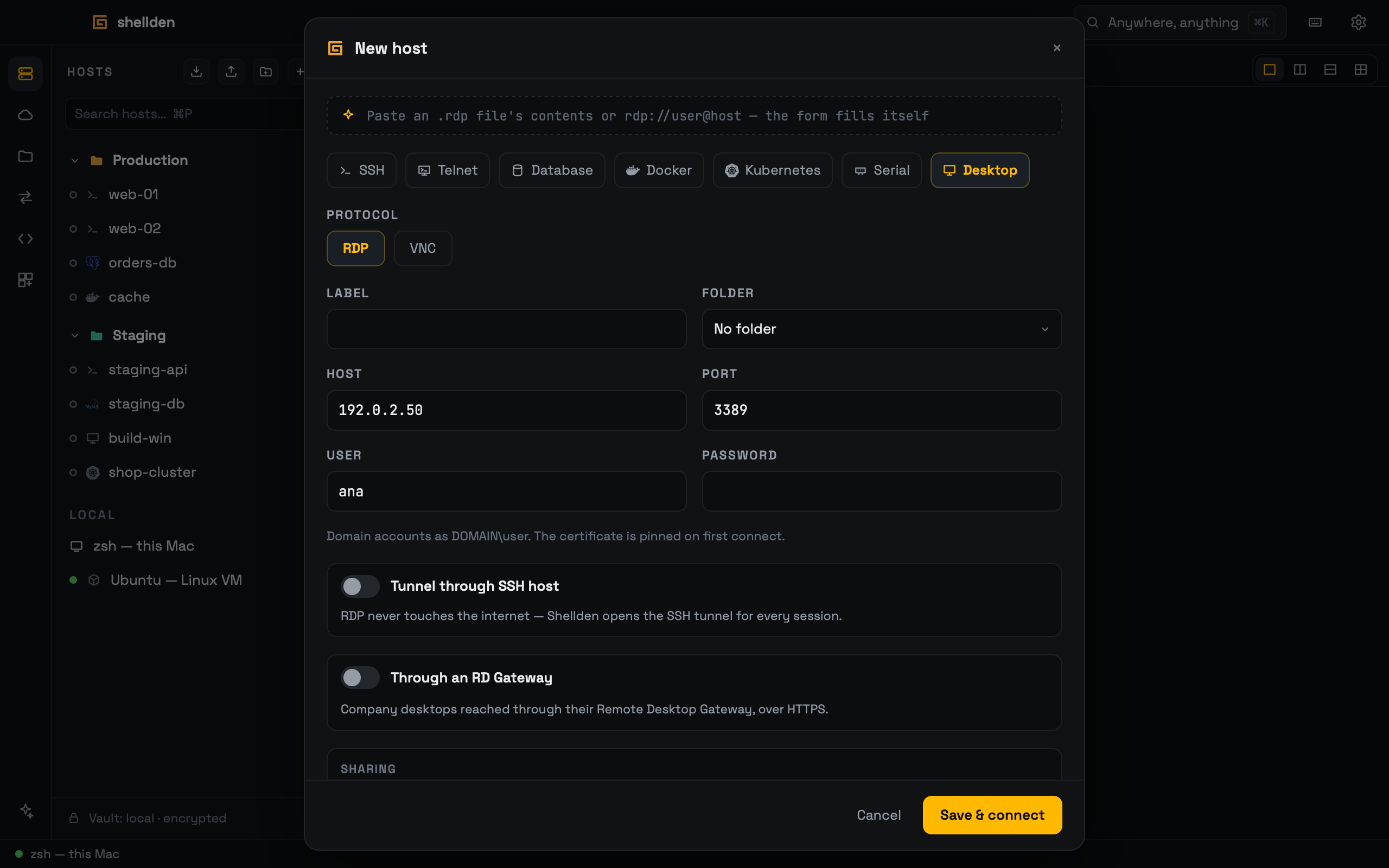
An RDP host: address, user and what it shares.
Adding a desktop
1
+ → Desktop → RDP: host, port (3389), user (DOMAIN\user for domain accounts) and password (kept in the Keychain).
2
Pasting an rdp://host:port address or the full address:s: line of a .rdp file fills the form.
3
Tunnel through SSH host reaches a desktop that is only visible from a saved server.
4
Through an RD Gateway reaches a company desktop through its Remote Desktop Gateway over HTTPS: the gateway's address (port 443 unless given) and, if it has its own, its user and password — left empty, the desktop's are used. The host is then the desktop's name as the gateway knows it. The gateway's certificate is asked about first ("Unknown gateway certificate") and pinned like the desktop's. The gateway login is basic authentication: gateways that only accept Windows sign-in (NTLM) are not reachable yet.
A refused user or password brings the password prompt back with "Authentication failed"; only a password that worked is kept. The first connection shows the server's certificate fingerprint and asks to trust it; it is remembered per host and port. A changed certificate shows a warning and connects only after trusting it again.
Sharpness and size
—
Retina (per host, on by default; Edit host → Sharing): the desktop uses the screen's real pixels and the remote side enlarges its interface to match — sharp text and video, more data.
—
The size in the status bar (for example "1968×1386 · Retina") is a menu: Standard halves the pixels for this session at once, for slow connections; each remote pixel then shows as an exact 2×2 block, sharp like a regular monitor rather than blurred.
—
Linux servers (xrdp) do not enlarge their interface, so they start at Standard; the Linux desktop's own scaling setting combined with Retina gives sharp and full size.
—
The desktop opens at the tab's size and follows it: resizing the window, the hosts dock or the assistant panel resizes the remote desktop a moment later (servers without dynamic resize keep their size and the picture scales to fit). On xrdp with XFCE, KDE or GNOME a resumed session is redrawn whole, and every size change flickers once.
—
The screen comes as video when the server can (Windows 10/11: H.264, decoded by the Mac's video hardware), so video and dragged windows stay smooth even fullscreen. Linux and older Windows servers keep the classic, lossless format; nothing to configure.
Keyboard and mouse
Keyboard and mouse go to the remote desktop while it has focus; ⌘ acts as Ctrl (⌘C / ⌘V copy and paste inside Windows). The session uses the Mac's keyboard layout, so ñ, @, accents and Option characters type as on the Mac. The status bar shows the user and host, the tunnel, Send Ctrl+Alt+Del and the resolution.
Capture system shortcuts (per host, off by default; Edit host → Sharing): while the desktop has focus, ⌘ alone opens the Windows Start menu, ⌘Tab switches remote windows, ⌘Space opens Start search and ⌃+arrows reach the remote side instead of switching Mac desktops. macOS asks once for the Accessibility permission (System Settings → Privacy & Security → Accessibility → Shellden); Open Settings goes there, and the notice goes away by itself once the permission is on (its × closes it before that). If Shellden already shows as on in that list, removing it (−) and adding it again fixes it. Clicking outside the desktop gives the shortcuts back to the Mac.
Clipboard and files
—
Text and images copied on the Mac paste in the remote desktop and the other way round, automatically. macOS may ask once whether Shellden can paste from other apps: the Mac clipboard is read only when the remote side pastes.
—
Shared folder (Edit host → Sharing → Shared folder → Choose…): nothing is shared until a folder is chosen. The remote side shows it as \\tsclient\<folder name> (Windows: File Explorer → Network). Files dropped from the Finder onto the desktop are copied there and never overwrite (" (2)" is added); the folder's button in the status bar opens it in the Finder.
—
Files copied in the Finder paste in the remote desktop (Ctrl+V or ⌘V). Files copied on the remote side show Copy to Mac in the tab; afterwards ⌘V in the Finder pastes them. Up to 4 GB per copy; bigger ones go through the shared folder.
Sound, microphone and camera
—
Sound plays through the Mac's current output at the remote side's volume.
—
Microphone: remote apps that record (Teams, Voice Recorder…) use the Mac's current input, opened only while they record. If macOS blocked it, the tab says so with Open Settings (Privacy & Security → Microphone → Shellden).
—
Camera (Windows): remote apps list "Mac camera (Shellden)". It runs only while a remote app uses it. Quality: Auto (follows the connection), Full HD (about 8 Mbps), HD (about 3 Mbps) or Data saver (about 1 Mbps, 15 fps), set per host under the Camera switch. During a call, "Camera · <quality>" in the status bar changes it at once. Linux servers have no camera redirection ("No camera").
What each host shares
Edit host → Sharing turns each part on or off: clipboard, following the tab's size and sound are on by default; the shared folder is on once a folder is chosen. Turned off, nothing of it is offered to the server.
A server can decline what is offered (an xrdp without FUSE or its audio module, a Windows policy). About 20 seconds into the session, anything the server never took up shows as a red label in the status bar, for example "No clipboard · no shared folder"; its explanation opens the first time and minimizes into the label.
Note. On Linux (xrdp) the shared folder and copied files need xrdp's FUSE support (the folder shows in ~/thinclient_drives), and sound and microphone need pipewire-module-xrdp or pulseaudio-module-xrdp. xrdp has no NLA: a wrong password shows xrdp's own login screen. Kerberos-only servers are not supported yet, and RDP tabs do not split.