A saved host opens an SSH terminal in one click. Its keys and passwords stay in the macOS Keychain, and with a resilient session the shell survives a dropped Wi-Fi.
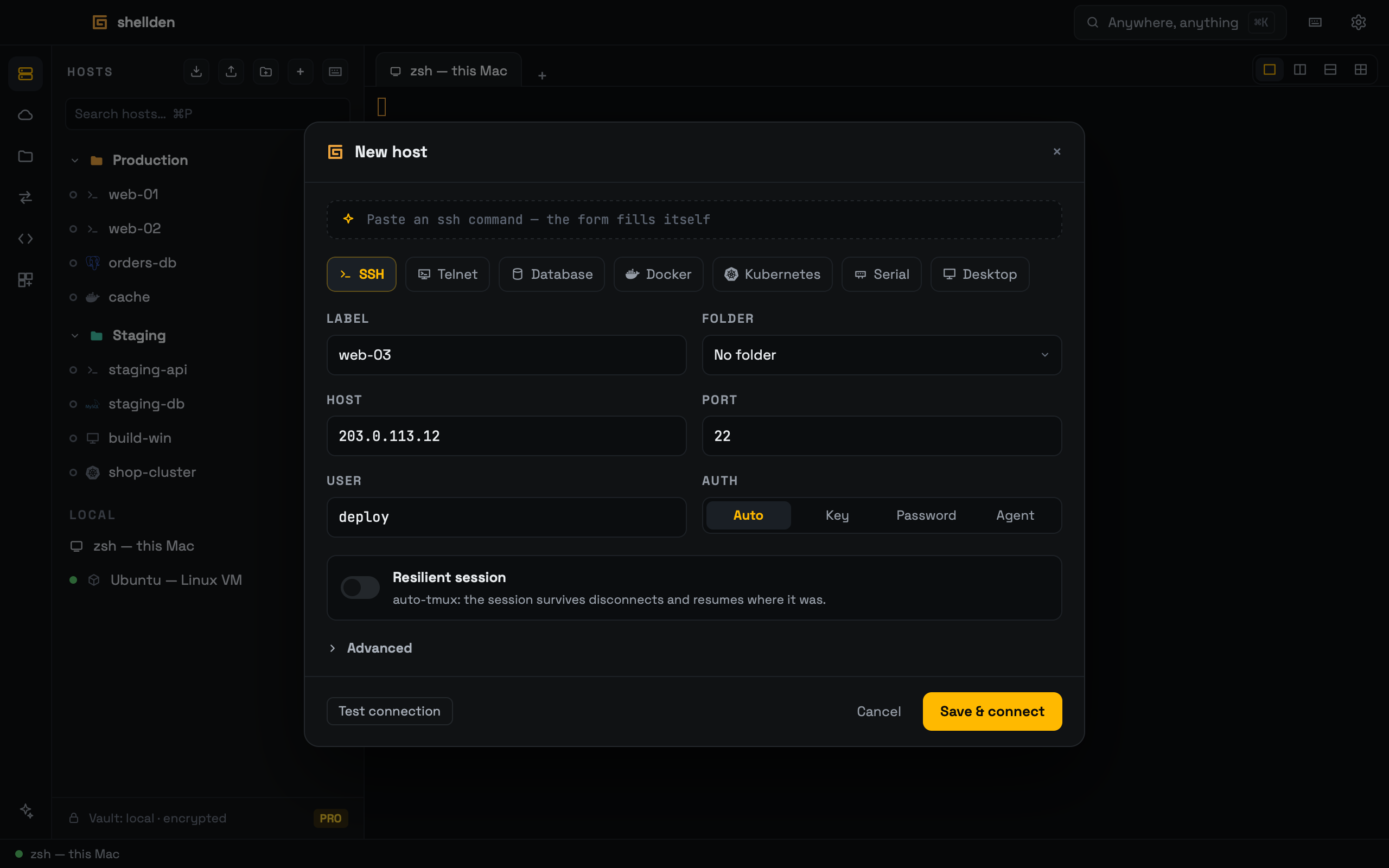
The New host form for an SSH host.
Adding a host
1
+ in the HOSTS header opens the New host form.
2
Pasting an ssh [email protected] -p 2222 command (or an ssh_config entry) into the top field fills the form.
3
Test connection checks the login and shows the latency before saving; Save & connect opens the terminal tab.
Host types: SSH, Telnet, Database (PostgreSQL, MySQL and MongoDB, each with its official logo, and SQL Server), Desktop (RDP or VNC), Docker, Kubernetes and Serial.
Options
—
Resilient session (auto-tmux): the session survives disconnects; Reconnect resumes exactly where it was.
—
Startup command, tags, a jump host and port forwards live under Advanced.
—
Settings → General → Open hosts switches between single and double click.
Folders, tags and search
Folders (the folder button in the HOSTS header; hosts drag into them), tags (Advanced in the host form) and search (⌘P) work on every plan.
Host actions
Hovering an SSH host shows Open in VS Code (Remote-SSH), Open in JetBrains Gateway (when Gateway is installed), edit (pencil) and delete. Deleting a database or RDP host also deletes its saved password from the Keychain.
The first connection
A server seen for the first time shows its fingerprint. Trust & connect remembers it. A CHANGED key later is refused: it can mean someone is in the middle of the connection.
The terminal
—
Local tabs run the Mac's own shell exactly as configured.
—
Settings → Terminal sets the font size and scrollback, applied live.
Panes: several things at once
A tab holds up to four panes, each with its own content — a host, a pod, a cluster, a database, the Linux VM, the Mac's shell — for a big monitor where several things are watched at once.
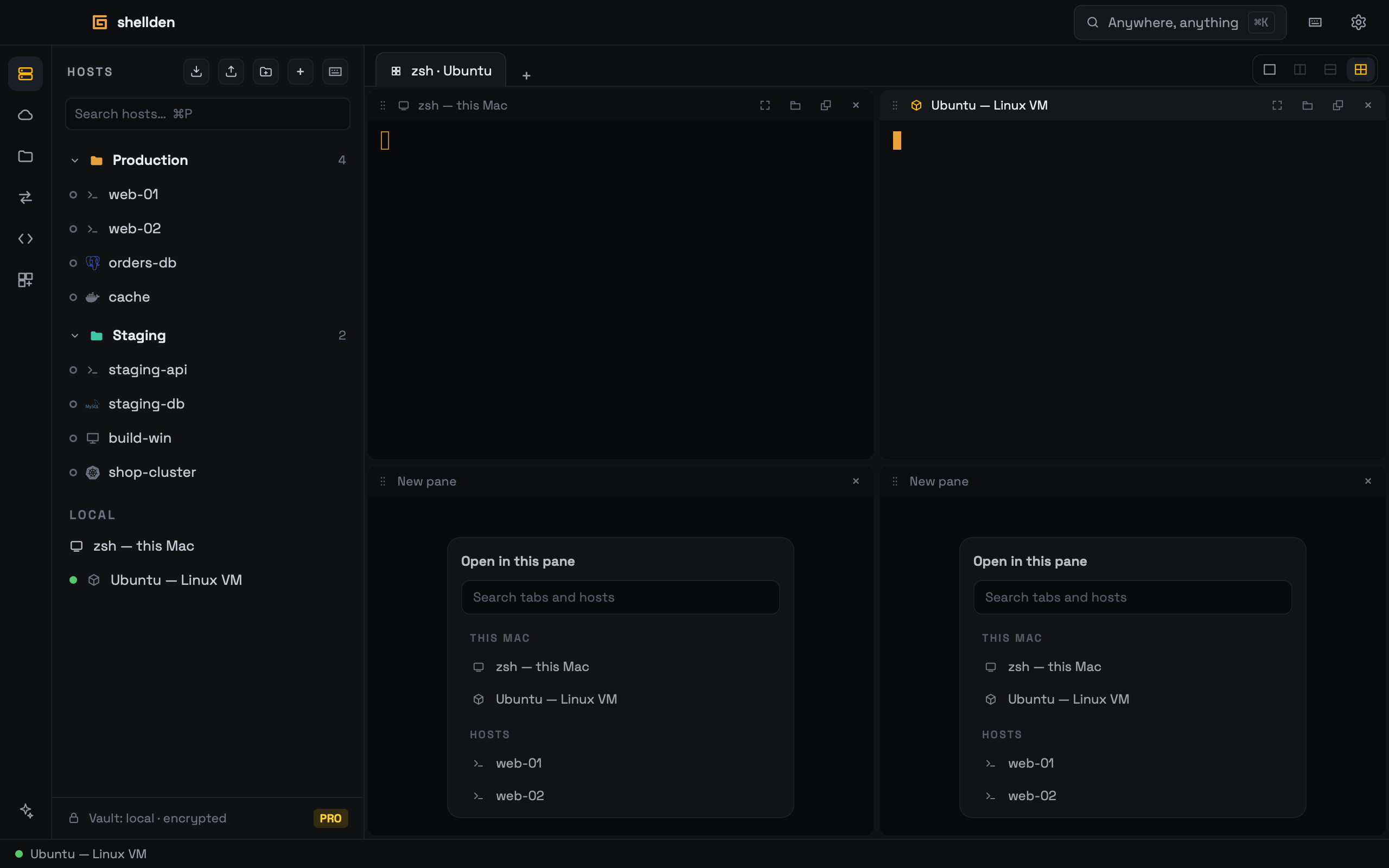
A tab with four panes, two still asking what to open.
—
Layout: the buttons at the right of the tab bar — one pane, side by side, stacked, a grid of four. ⌘D and ⌘⇧D split the focused pane.
—
A new pane asks what to open, everything listed: open tabs and the sessions in a cluster's panel (one moves in, still running — two pods' logs side by side), this Mac (its shell, the Linux VM) and every saved host. Typing filters the list.
—
A tab with several things is named after them ("Ubuntu · zsh").
—
Each pane is a card with a bar naming it; the focused one's bar is lit and the others dim slightly. The boundary between panes drags to resize.
—
From a pane's bar: ⋮⋮ drags it — beside another pane, onto it to swap, onto a tab to move it there, or onto the empty tab bar to make it a tab; ⤢ (or ⇧⌘↩) gives it the whole tab (its bar then says 1 of N · Show all) and back; the tab button makes it a tab of its own; × (or ⌘W, or ⌘X from inside its terminal) closes it, and the rest takes the space.
—
Terminals move live: nothing reconnects. A cluster, a database or a remote desktop moved elsewhere opens again there.
Windows on other monitors
The first launch opens Shellden filling the screen; after that every window reopens at the size and on the monitor it was left.
A tab or a single pane can leave for a window of its own — to put it on another monitor — and come back, its sessions still running.
—
To a new window: right-click a tab → Move to a new window, or ⇧⌘N for the active tab. For one pane, the ⧉ button on its bar.
—
The new window has its own tabs, panes and layouts; ⌘T opens a tab in it.
—
Back: Attach to the main window, at the top of the detached window, returns every tab in it. Closing the detached window instead ends its sessions.
—
Shells and SSH, pod and kubectl sessions travel live. A cluster view, a database or a remote desktop opens again in the new window; the sessions in a cluster's panel end when the cluster moves, so one that must keep running goes to a tab first (the panel's tab button).