Working · 1 of 6
Moving files (SFTP)
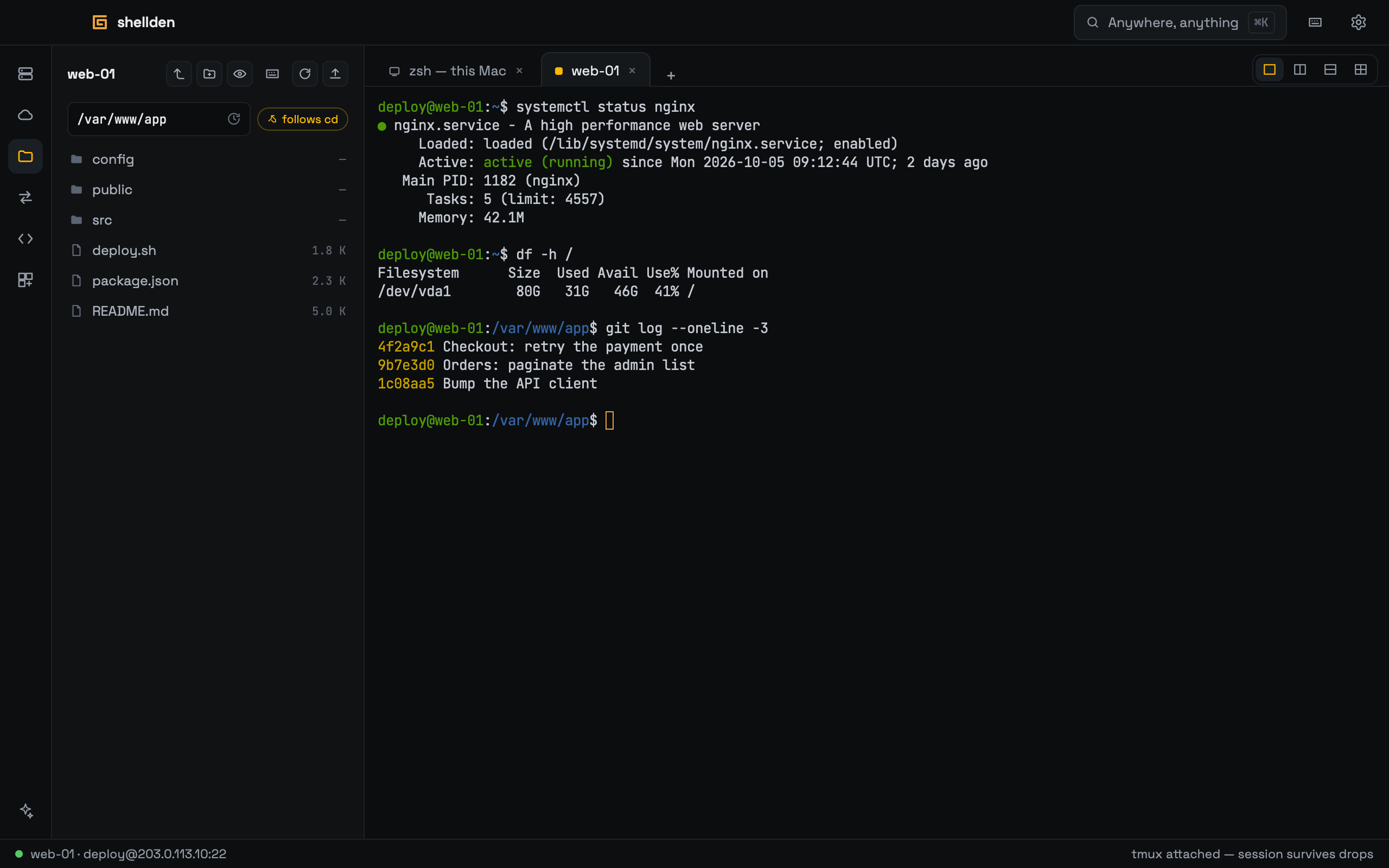
The Remote files panel follows the active SSH tab: browse, upload, download and edit remote files without leaving the terminal.
Browsing
With an SSH tab open, the Remote files icon in the rail opens the panel.
The path bar (⌘L) takes a typed or pasted path; subfolders autocomplete. The clock button lists recent paths.
The follows cd chip keeps the panel on the shell's directory (a click turns it on or off).
Toolbar: parent folder, new folder, show hidden files, refresh, upload.
Files
Upload: the toolbar button, or files dropped from the Finder.
Right-click a file: Download (folders too), Edit in local editor (saving uploads it back), Rename, Permissions (octal mode), Copy path, Delete.
Keyboard
After a click on the list: ↑ / ↓ select, Return renames, ⌘↓ opens a folder or edits a file, ⌘↑ goes to the parent folder, ⌘⌫ deletes (twice to confirm), ⌘C copies the path, Escape clears the selection.