Shortcuts and ⌘K
Every action has a place in the command palette, and every shortcut can be changed where it is used.
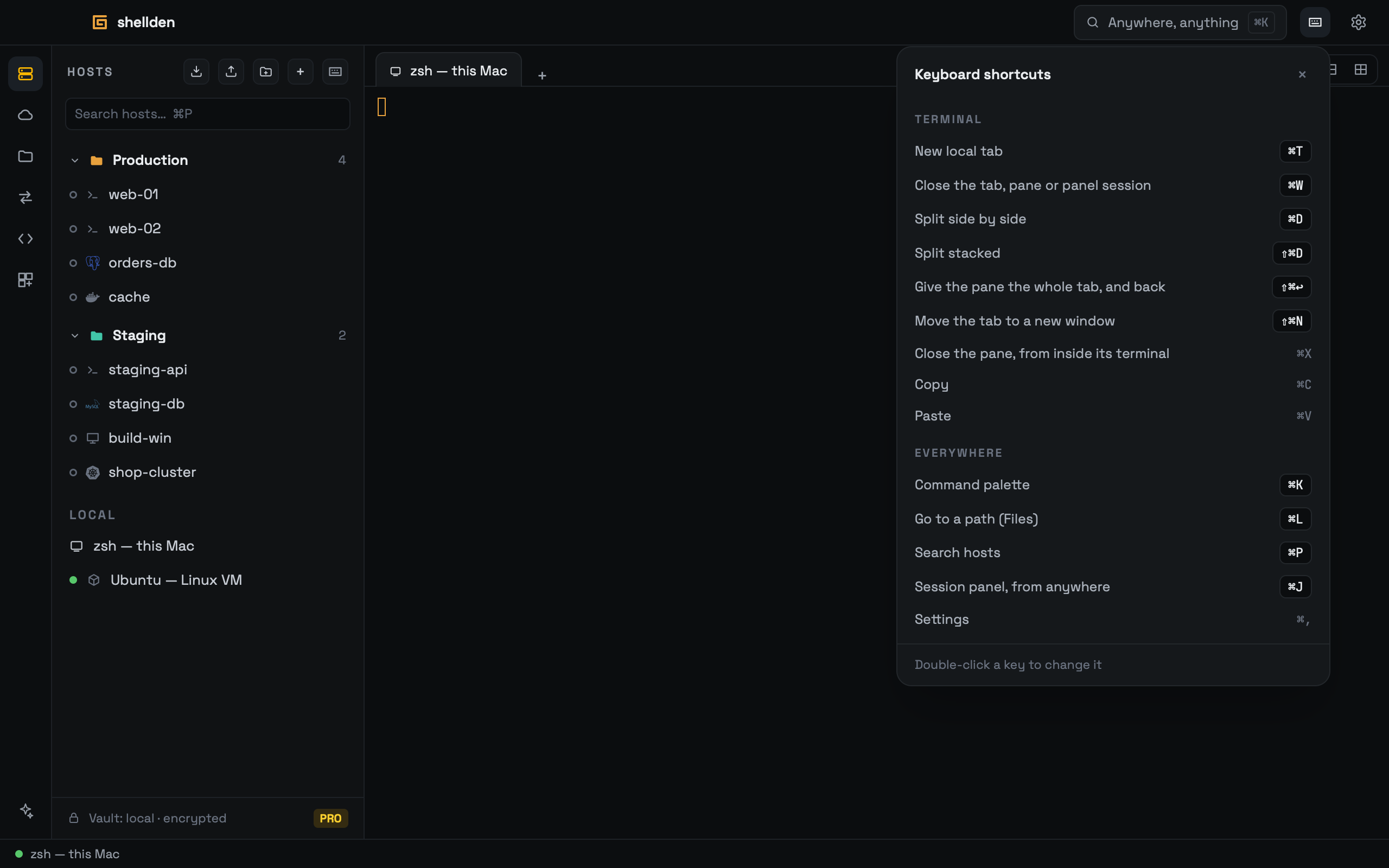
The keyboard sheet
The keyboard button — in the window bar and in Hosts, Cloud, Files, a cluster and a database — lists that part's shortcuts first, then the ones that work everywhere. Help → Keyboard shortcuts opens it too.
Defaults
Everywhere: ⌘T new local tab · ⌘W close the tab, pane or panel session · ⌘D split side by side · ⌘⇧D split stacked · ⌘K command palette · ⌘P search hosts · ⌘L Files path bar · ⌘J a cluster's session panel · ⌘, Settings. Each part adds its own: a cluster's letters (s, l, d, f, /, p, m, x), the Files list (⌘↓, ⌘↑, ↩, ⌘⌫, ⌘C), a database (⌘↩).
Changing one
A double-click on a key cap (or ↩ on it), then the new combination: it is saved at once; Escape cancels. A combination already used, or one macOS keeps, is refused on the row itself. Global shortcuts need ⌘ or ⌃; a view's own keys can be single letters. A changed shortcut shows a dot, and ↺ next to it brings back its default; Reset all brings back every default.